← Guides · · Eden Photos
From a folder of photos to a searchable library: an Eden Photos walkthrough
Follow a real 299-photo demo on Mac: browse automatic categories, inspect generated keywords, and find images with a search for mountains.
What does automatic photo organization actually look like? We opened a stock-photo demo library in Eden Photos for Mac, let the app process it, and captured the results. This walkthrough shows the real interface and the steps you can repeat with your own images.
The gallery contained 299 images when processing finished. The screenshots use stock photos from Lorem Picsum, whose collection comes from Unsplash, rather than personal customer photos. They show one demonstration on version 2.2.17, not an accuracy benchmark or a promise that every library will produce the same results.
1. Start with a small folder
Download Eden Photos for your computer and add a folder using Add in the gallery. For a first trial, use a small selection that includes several subjects: landscapes, objects, flowers, or buildings. Copies are useful if you want to experiment with metadata settings before bringing in a larger collection.
Sign in to use the account features. Automatic tagging and categorization require available AI credits; manual tagging and custom albums are also available on the free Starter plan. Check the current plans before choosing how to process a larger library.
Enable Auto-organise and allow processing to finish. The progress indicator shows the active work. During our demo it counted through the imported images; once the work was complete, the indicator disappeared and the categorized photos were ready to browse. Processing time will depend on your library and connection, so this example does not give a fixed time estimate.
2. Browse a category
Open Albums to see the categories populated by the app. In this demo, Nature & Landscapes contained 103 photos, Beaches & Seaside contained 36, and Sunrises & Sunsets contained 20. Those are observations from this particular set of stock images.
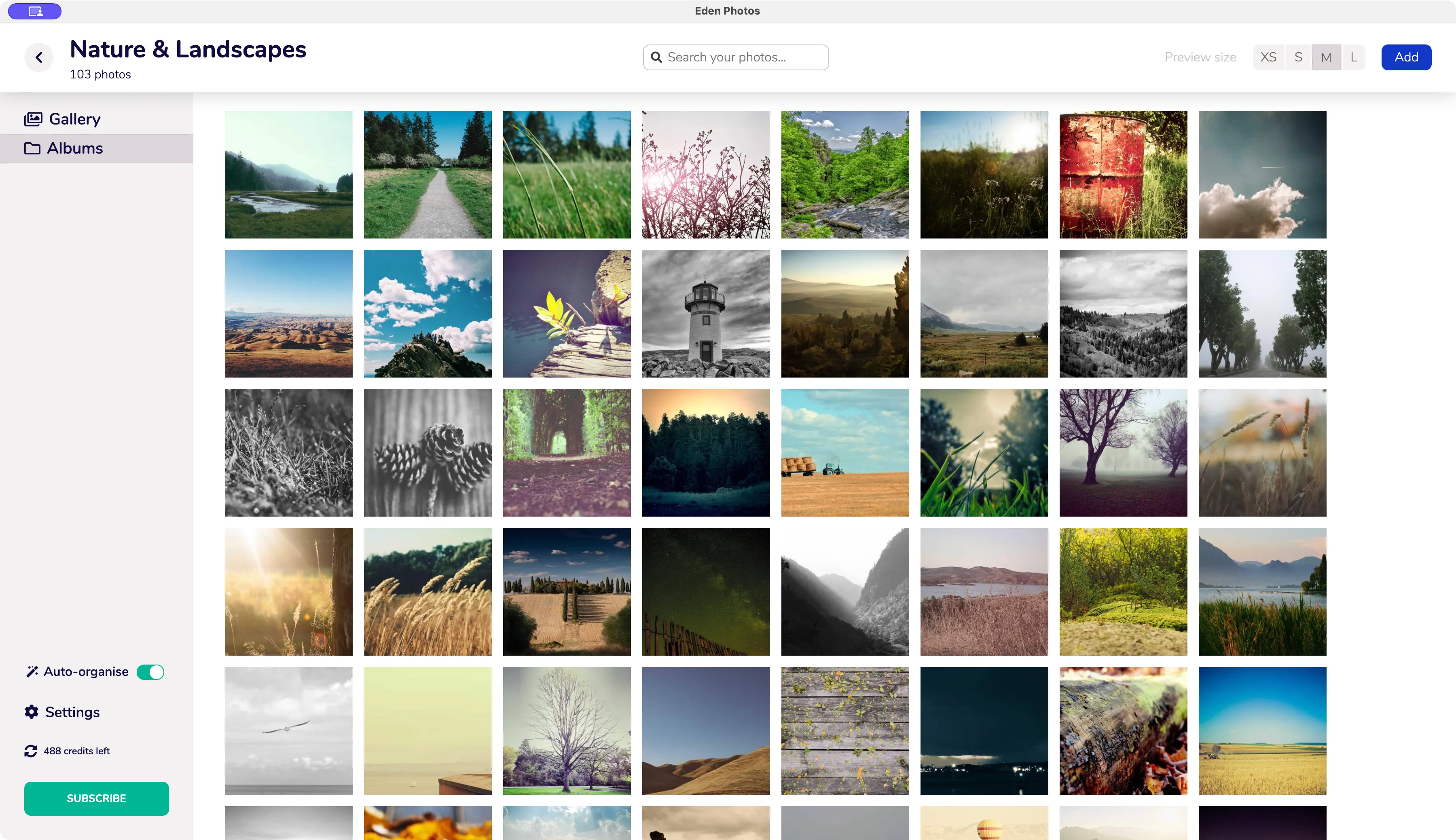
The real Nature & Landscapes view after processing. The app interface and photo selection have not been recreated for the illustration.
A category gives you a broad starting point. It is useful when you remember the general subject of a photo but not its filename. Browse a category first, then inspect individual pictures to see what the app recognized.
3. Inspect the words attached to one photo
Select a thumbnail. The Selected Image panel shows its category, file information, and keywords. We selected a river landscape from the demo set. The panel showed Nature & Landscapes and these keywords:
nature, landscape, mountains, forest, trees, river, stream, grassy field, wetland, marsh.
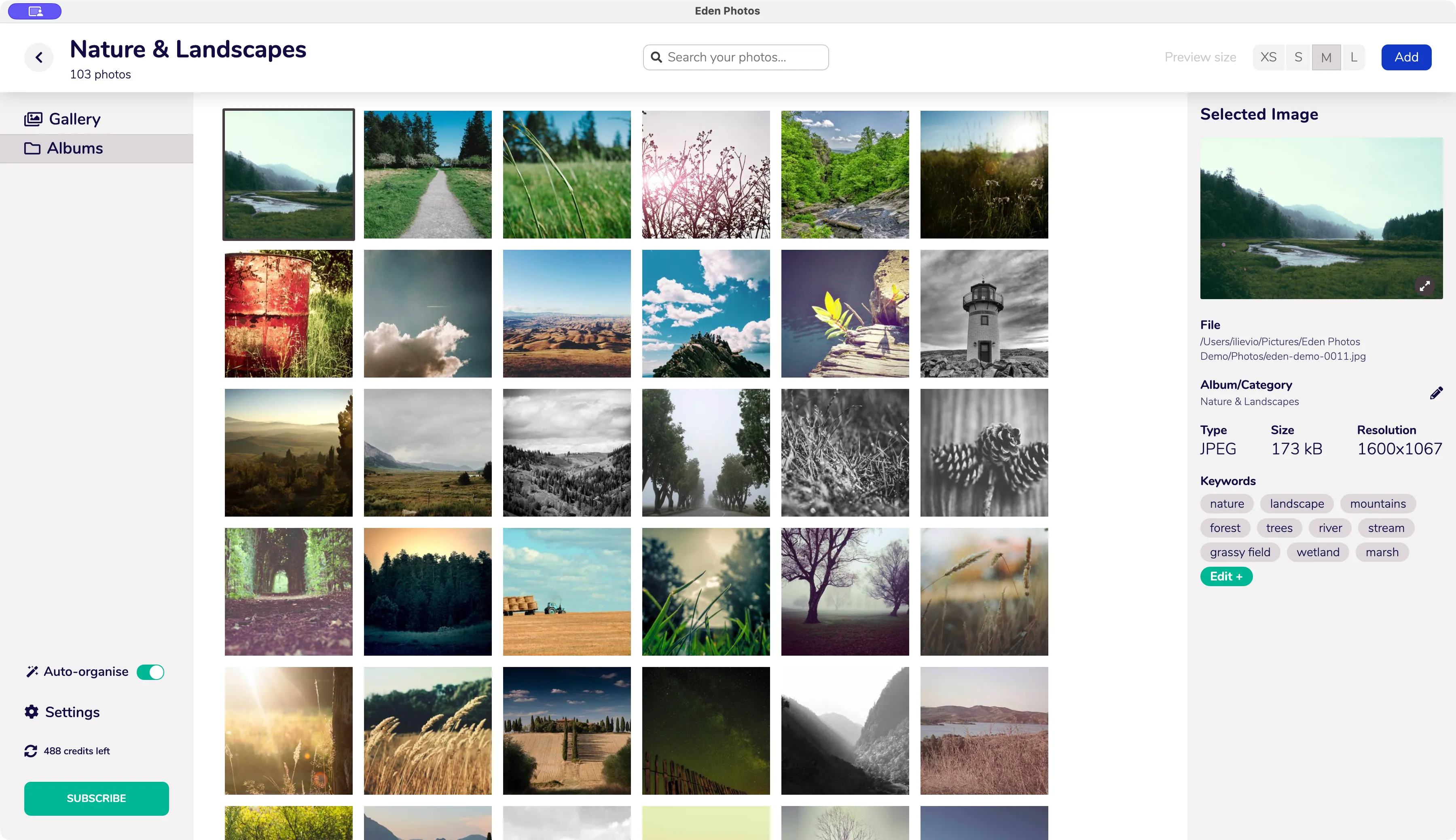
This is the app’s output for a specific demo photo. Similar terms can overlap, and automatic labels still benefit from review.
Use Edit + when the keywords need adjustment. A useful label describes what you can see or adds context you know. If an automatic term is misleading, correct it instead of relying on it for future searches. Names of trips, projects, or events may require your own context; image recognition cannot supply everything you remember about a photograph.
4. Search for a subject
Return to Gallery, enter mountains in the search field, and inspect the matching images. In our demo, that search brought together mountain scenery, coastlines with mountains, and other scenes whose keywords included the subject.
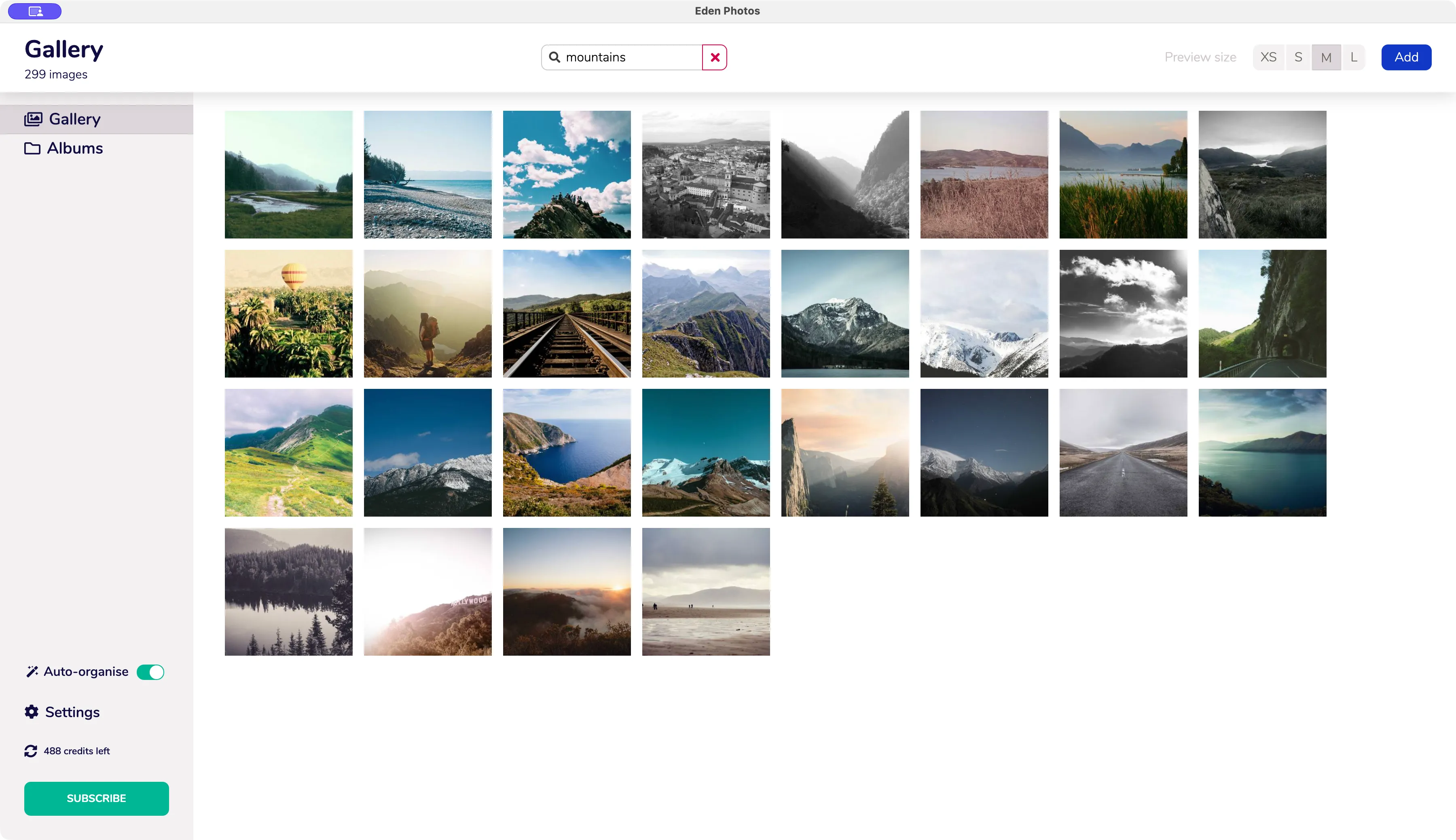
The search uses the processed demo library. You do not need to rename each image to the subject shown in it.
Try a term you have just seen in a photo’s Keywords panel. This gives you a concrete way to check the connection between the labels and the search results. If a result surprises you, select that photo and review its keywords. If a photo is missing, check whether processing has finished and whether its labels include the term you searched for.
5. Check how your organization travels
Finding a photo inside Eden Photos and preserving keywords outside the app are separate checks. Review the metadata-writing settings before assuming another app will see the same labels. Copy a test image and inspect its keywords in the other tool you use.
Our ten-photo metadata portability test walks through copying, exporting, and transferring files. Album membership is a separate concept from embedded keywords, so test those expectations separately.
For details on thumbnail processing, existing tags, and supported formats, read the Help & FAQ. When the small test behaves as expected, add the rest of your library and review a sample of the results.